A normal screenshot only keeps what you see on screen. To get the entire page, from header to footer, Chrome gives you two ways: the tool hidden in DevTools or an extension. We tested both on three real websites, and here is how each one works and when it goes wrong.
Without an extension: the DevTools screenshot
Chrome has a full page screenshot built into its developer tools. It works on Windows, Mac and Linux.
- Open the page you want to capture.
- Open DevTools: F12 or Ctrl+Shift+I on Windows and Linux, ⌘+Option+I on Mac.
- Open the command menu: Ctrl+Shift+P (⌘+Shift+P on Mac).
- Type “screenshot”.
- Choose Capture full size screenshot. Chrome saves a PNG to your downloads folder.
The same menu has two more:
- Capture screenshot: only what you see in the window.
- Capture area screenshot: drag to pick a part.
For the mobile version, first turn on the device toolbar (Ctrl+Shift+M, ⌘+Shift+M on Mac), choose a phone at the top and repeat steps 3 to 5.
Where it falls short
- It doesn’t scroll the page. It captures the page as it is, without scrolling. Images that load as you scroll come out blank, and sections that appear with an animation when you reach them can come out empty. In our test, the smartdesigninspector.com home page came out almost blank from the second screen down.
- Scrolling first only half helps. If you scroll to the bottom and back to the top before capturing, the images load: on losmejoresde.com they all came out. But on a site with lots of scroll effects some sections were still wrong, and one appeared twice.
- In mobile mode the image is huge. The device toolbar captures at the pixel density of the phone you pick (×3 on a current iPhone): in our test, long pages gave images over 40,000 px tall, which some viewers won’t open.
- PNG only and no editor: to crop, point things out or blur, you need another program.
With Smart Design Inspector: scroll the page and stitch the screens
Smart Design Inspector is a free Chrome extension. Its capture doesn’t take one shot at once: it scrolls the page screen by screen, waits for images to load and animations to finish, and stitches everything into one file.
- Install the extension and open it on the page you want to capture (toolbar icon or side panel).
- Go to Capture → Full page.
- Choose the format: PNG, JPG, WebP or PDF.
- Choose the view: Desktop or Mobile (390 px).
- Click Capture page. You’ll see the progress (“Capturing 3 of 12…”) and the file downloads when it’s done.
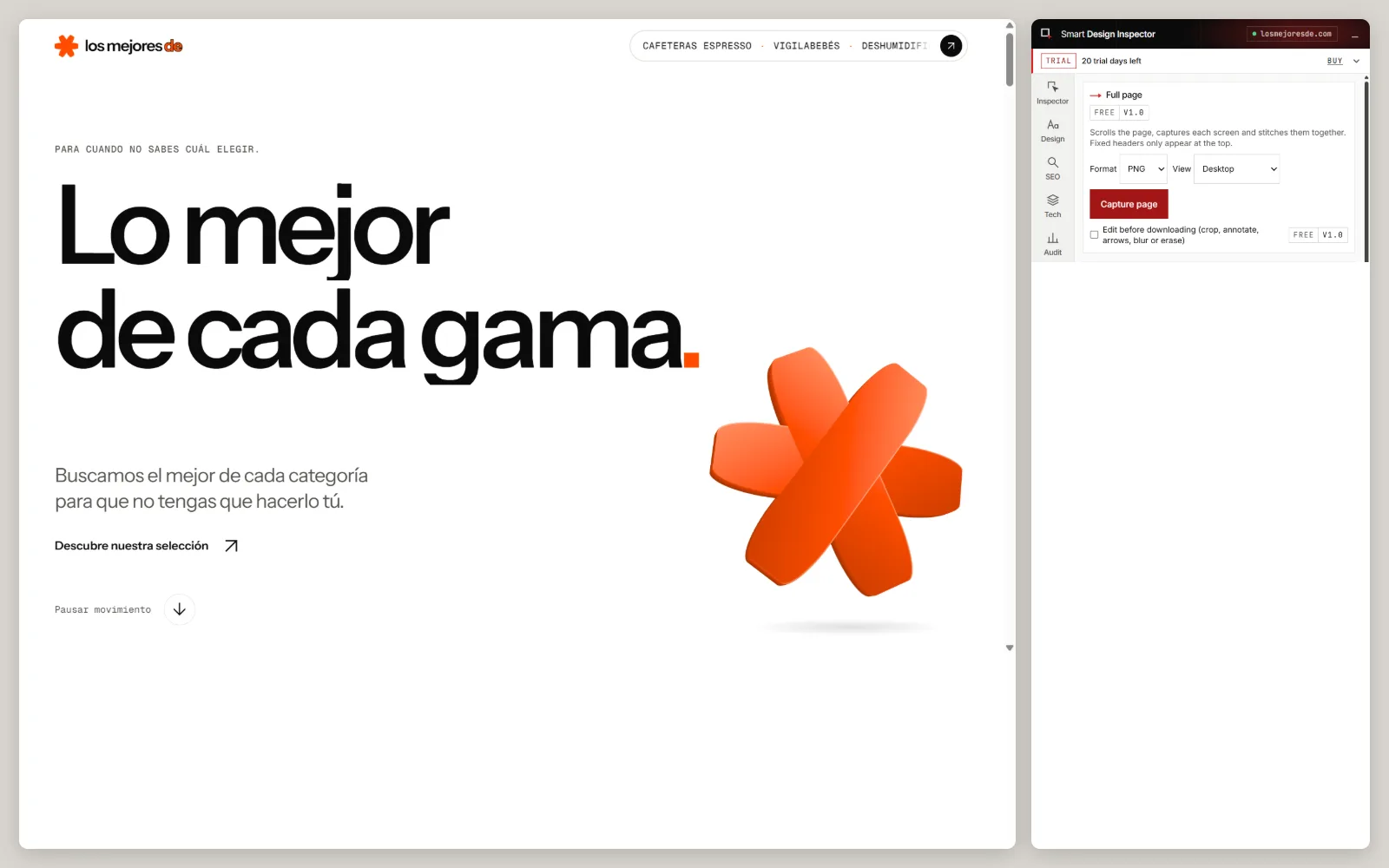
What it does for you while capturing:
- The fixed header appears only at the top, not repeated on every screen.
- It hides elements fixed at the bottom, such as the chat button, so they don’t show up halfway down the page.
- It waits for images that load as you scroll and for entrance animations, up to 2 seconds per screen.
- Very long pages fit whole. If the image would exceed Chrome’s limit (32,767 px per side), it lowers the resolution just enough to fit.
- When it’s done, it leaves the page as it was, at the same point.
It’s slower than DevTools because it really scrolls: in our test it took 19 to 42 seconds per page, against about one second for DevTools.
Which format to choose
| Format | What for |
|---|---|
| PNG | Best quality, lossless. Larger files |
| JPG | Small files. To send or upload to a task manager |
| WebP | Smaller than JPG at the same quality. Up to 16,383 px tall: for very long pages, use JPG or PNG |
| To print or attach. A long page is split into several A4-proportion sheets |
The mobile view
With Mobile (390 px) the extension captures the layout the site shows at the width of a current iPhone, from desktop Chrome. During the capture, the tab moves to a narrow window and then goes back where it was.
Two things to know: it captures by width, so if the site picks its mobile version by browser rather than by width, you’ll get the desktop one. And it isn’t a screenshot taken on the phone: for that, use your phone’s own.
Where your captures are kept
Besides downloading, they stay in Saved captures, in the same panel, so you can download, edit or delete them again. They’re stored in your browser and never uploaded anywhere.
Capture just one element
Sometimes you don’t want the page, just a part of it: the header, a pricing card, a form.
- In Capture, click Pick and capture (under One element).
- Move the mouse over the page: the element under it is highlighted. Click to capture it (Esc cancels).
Its box is cropped exactly, even if it’s taller than the screen.
Without an extension: in DevTools, Elements panel, right-click the tag → Capture node screenshot. It has the same limit as the full size capture: it doesn’t wait for what loads as you scroll.
Edit the capture: crop, point out and blur
Tick Edit before downloading before capturing, or click Edit on a saved capture. The editor opens in a new tab with:
- Crop (C).
- Arrow (A) and Rectangle (R), in five colors and three thicknesses.
- Text (T), in three sizes and with an optional background.
- Blur (B), to hide personal data.
- Erase with the background color (E), to remove something without it showing.
- Undo and redo, zoom and the output format. When you’re done, Download.
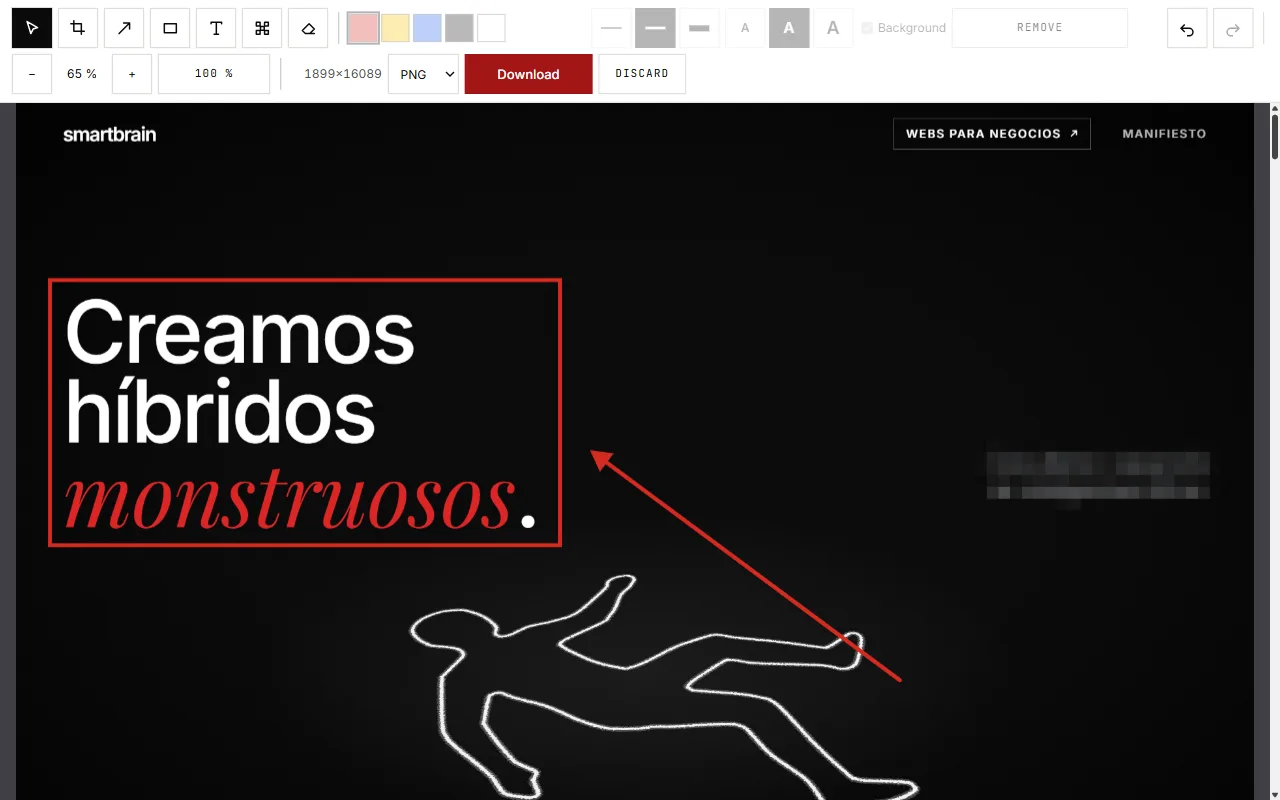
DevTools or extension: what you get in each case
Tested on 18 November 2026 with Chrome 157 on three of our own sites: a long one with scroll animations (smartdesigninspector.com), one with a fixed header and scroll effects (smartbrainactivity.ai) and one with many images that load as you scroll (losmejoresde.com).
| DevTools | Smart Design Inspector | |
|---|---|---|
| Install | Nothing | Free extension |
| Time per page | ~1 s | 19-42 s |
| Images that load as you scroll | Blank, unless you scroll first | Loaded |
| Sections animated on arrival | Empty or misplaced | Complete |
| Fixed header | Top only | Top only |
| Mobile view | Device toolbar, at the phone’s pixel density (huge images) | 390 px |
| Formats | PNG | PNG, JPG, WebP and PDF |
| Editing | No | Crop, arrows, text, blur… |
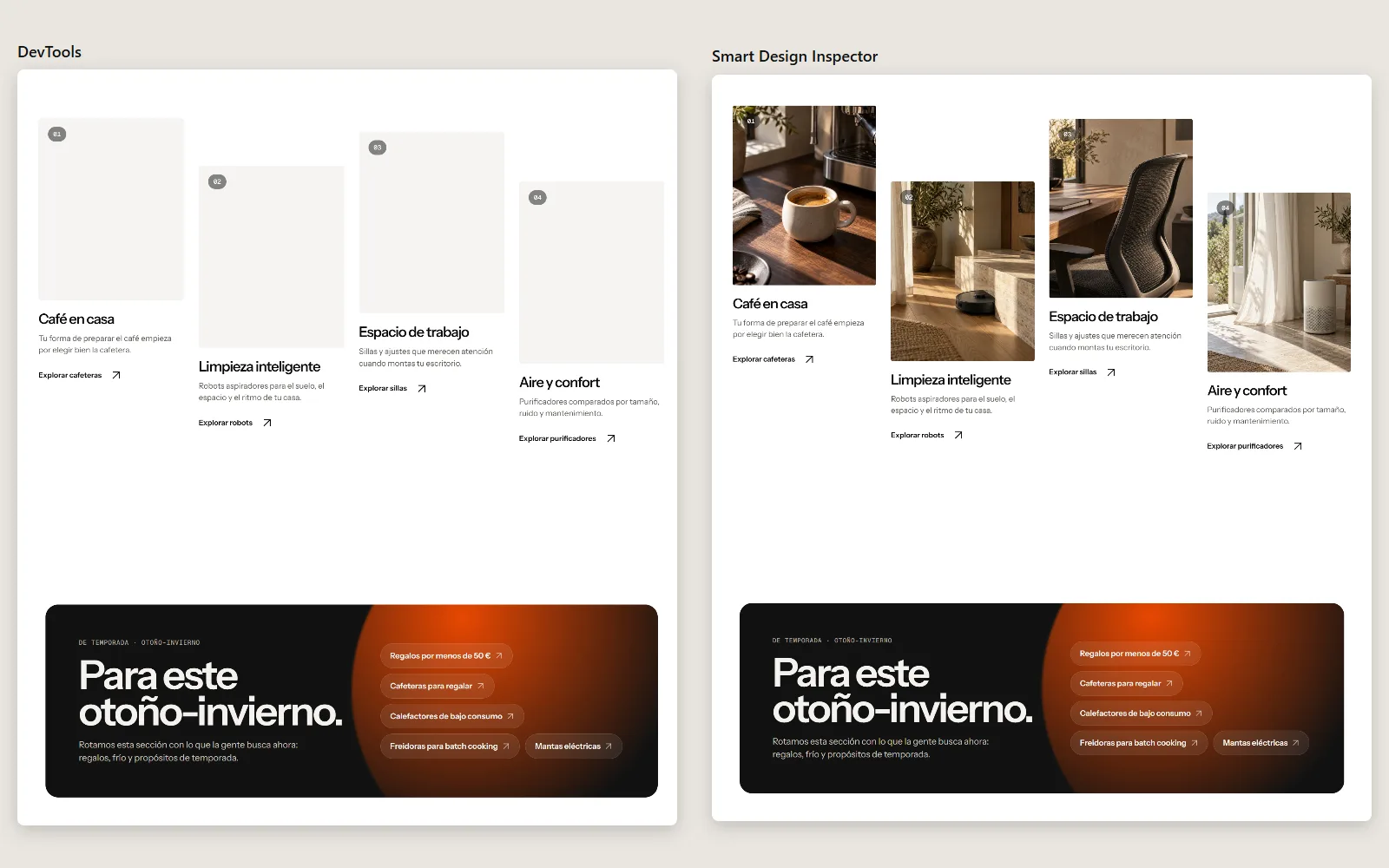
In short: for a simple, static page, DevTools is the fastest. For a modern site, with images that load as you scroll or animations, or if you want it as a PDF or edited, use the extension.
Common problems
| Symptom | Cause | Fix |
|---|---|---|
| Blank gaps where photos should be | Images that only load as you scroll | With DevTools, scroll to the bottom and back up first. The extension already waits; if one is missing, reload and try again |
| Empty or misplaced sections | Animations triggered when you reach them | Use the extension, which scrolls and waits for them to finish |
| The header is repeated | Separate screenshots, or a tool that doesn’t handle it | The extension keeps it at the top only |
| The cookie banner shows up | Some banners aren’t stuck to the very bottom and get captured on the first screen | Accept or reject cookies before capturing |
| A section comes out black or empty with both methods | Effects driven by the scroll itself (sections “pinned” while you scroll) | No easy fix: capture that part with One element or with a normal screenshot, at the exact point |
| “The capture is taller than 16,383 px” when choosing WebP | That’s the WebP format’s limit | Choose JPG (small) or PNG |
| “Capture full size screenshot” doesn’t appear | You typed the command in another language or with focus outside DevTools | Click inside DevTools, press Ctrl+Shift+P and type “screenshot” |
| The image won’t open or is very slow | A very long page gives a huge image (with DevTools in mobile mode, over 40,000 px tall) | Use JPG or PDF, or capture it in parts |